How To Add AdSense In Blogger

Adding Google AdSense code into your Blogger account is fairly easy, although this wasn’t possible before when I was new to Blogger. The reason why I want to add Google AdSense code manually rather than using Blogger’s AdSense gadget is because of channels. Channels are pretty helpful is segregating page impressions of ads and this is not possible if you use Blogger’s built-in Adsense gadget. To manually add code (this is assuming you know how to generate AdSense code in your AdSense account), do the following …

1) Once in the blog of your choice, choose LAYOUT

2) Click ADD A GADGET

3) Choose HTML/JAVASCRIPT and click the + (plus) image

4) Paste your Google AdSense code

5) Click SAVE

That’s it! It took me quite a while till I thought about having to check if placing AdSense code in an HTML/Javascript gadget is now possible or still not. And now that it is, I’m very happy as I can keep track of my page impressions through channels.

Like what you see? Buy me a cup of coffee. Or subscribe to my feeds.


(1 votes, average: 5.00 out of 5)
 Loading ...

4 In A Row For iTouch

Another great game comes to iTouch. 4 in a row is a common game that all of us are familiar with. Just connect 4 circles whether horizontally, vertically or diagonally and you win! Features include a one on one game versus the game’s artificial intelligence (which is pretty darn good, I won only once and by mistake), a two player mode locally and a two player mode through wifi. The gameplay’s simple and it’s a must-have game for every iTouch users out there. Now, if only reversi is available.

Like what you see? Buy me a cup of coffee. Or subscribe to my feeds.


(No Ratings Yet)
 Loading ...

PSP Virtua Tennis 3

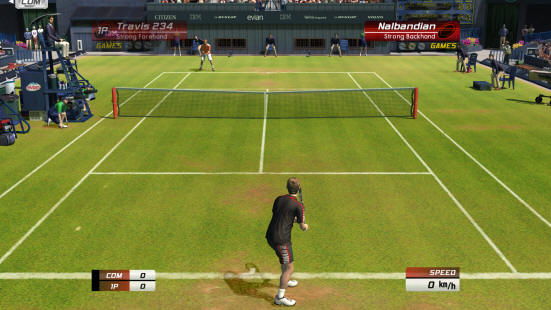
After so long of coveting a Nintendo DS Lite, I bought a PSP Lite insetad. Comparing it to Nintendo games I think there are lots more role playing type of games for the PSP and decided to get it since my brother is into it. He’s the one who’s hanging on to my PSP now anyway. One of the irreplaceable games in my PSP is Virtua Tennis 3. I enjoy playing this game over and over. Although irritating at times, because usually in the 3rd round your opponent gets almighty or something. Imagine, it’s as if the artificial intelligence was somewhat overdone because while the ball is on its way to your opponent’s side of the court and while you’re moving a little bit, it somehow knows where to hit the ball so you won’t be able to hit it back. If you think this is bad, wait till you play the surprise level. It will only happen if you play all 5 levels without losing. Your opponent will be a nobody that wears a golf attire (weird huh). Worse, you can barely hit the ball twice as the opponent knows where to hit the ball back to you so you won’t be able to even reach for it. You’d have to play a perfect game and if you can, hack the game itself so you’d stand a chance against this surprise level player haha. Anyway, even if as the levels go on and the players get harder, they should have one game feature in the settings to disable the names of the players on both the left and right upper side for good (check attached image). This is because sometimes you can’t see where the ball is headed back to you until it is too late to notice it. Still, it’s a good game and this will stay in my PSP for good ;) hehehe.

Like what you see? Buy me a cup of coffee. Or subscribe to my feeds.


(No Ratings Yet)
 Loading ...

Make your MacBook VNC’able

It wasn’t easy for me to enable remote access for my MacBook. I searched for tips on Google on any VNC Server and later found out that Mac OS already has one installed into it. It took me awhile to find out that Tiger and Leopard both have different names for remote access management. Tiger has it as Apple Remote Desktop while Leopard has it as Remote Management. To enable it, do the following …

1) Click the apple logo on the top left
2) Choose system preferences
3) Click sharing
4) Enable Apple Remote Desktop (for Tiger) or Remote Management (for Leopard)
5) Click options button, choose the checkbox that says access via password, then set your desired password.
6) To check if it works, open up a VNC Client (Chicken for the VNC is a good one for Mac) then type in the I.P. if the PC you will be connecting to plus the password.

If ever you want to enable Remote Management via command line, do this (in Leopard)
sudo /System/Library/CoreServices/RemoteManagement/ARDAgent.app/Contents/Resources/kickstart -activate -configure -access -on -restart -agent -privs -all

Make sure remote login is enabled in sharing so that you will be able to access via SSH.

That’s it. Happy VNC-ing.

Like what you see? Buy me a cup of coffee. Or subscribe to my feeds.


(No Ratings Yet)
 Loading ...