Using Remote Desktop Web Connection
Posted by tech on
November 27, 2008
Connecting to Windows desktops remotely was made possible with Remote Desktop Connection. But if we do not have an installation of the program, there is another way to do it by connecting via the web. This is made possible with Remote Desktop Web Connection. You only need to download this and install it in order to run the Remote Desktop Connection inside a browser. The installer will extract the necessary files (by default in c:\inetpub\wwwroot\tsweb) and libraries including a default.htm file that contains basically all the code that you need to connect remotely. Make sure you have IIS (Internet Information Server) running though since you will be connecting remotely using a browser.
Using Google Chrome and Firefox are pretty useless since there is the issue of ActiveX. So if you are a total newbie or you do not care wihch browser you would use to run the default.htm, use Internet Explorer right away. Go to http://localhost/tsweb/default.htm to load the page. By default, the page contains a form that will let you input the server and a connect button to connect to the server. If you need to automate connection without submitting the form you use the following HTML code to load the activeX object.
<OBJECT language="vbscript" ID="MsRdpClient" CLASSID="CLSID:9059f30f-4eb1-4bd2-9fdc-36f43a218f4a" CODEBASE="msrdp.cab#version=5,2,xxxx,0"></OBJECT>Then use the following VBScript code
<script language="vbscript">
MsRdpClient.FullScreen = TRUE
resWidth  = screen.width
resHeight = screen.height

MsRdpClient.DesktopWidth = resWidth
MsRdpClient.DesktopHeight = resHeight

MsRdpClient.Width = resWidth
MsRdpClient.Height = resHeight
MsRdpClient.server = "ip"

MsRdpClient.username = "username"
MsRdpClient.AdvancedSettings.ClearTextPassword = "password"

MsRdpClient.AdvancedSettings2.RDPPort = "3389"
MsRdpClient.Connect
The code above opens the Remote Desktop Web Connection in Full Screen, it will occupy every space inside the browser. You can also notice that there is an option for setting the port. By default, the port is set at 3389 but desktops have the option to change the port for remote connections so just change the value if you are listening to a server in which the port is not set to its default.
Like what you see? Buy me a cup of coffee. Or subscribe to my feeds.tags: connection, desktop, remote, web
No Comments
Enable Word Wrap In Visual Studio 2005
Posted by tech on
November 5, 2008
To enable word wrapping in Visual Studio 2005, follow the instructions below.
On the Tools menu, select Options.
Open the Text Editor folder
Open the All Languages folder
Select General
Under Settings – select the Word wrap option
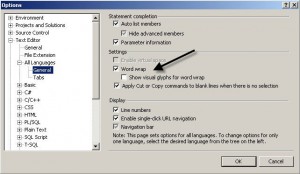
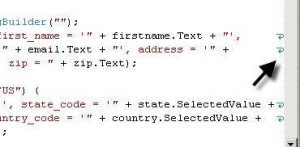
If you enable visual glyphs for word wraps, little arrows appear on the end of the line, signifying that the next text is word wrapped to the next line.
ASP.NET: Get Access Of Control Within A CreateUserWizard
Posted by tech on
November 2, 2008
Getting access to a control from within c# is straightforward. You just call the ID name and call the method or property that you want to use. If you are going to get access to a control from within a CreateUserWizard control and your code may look something like
<asp:CreateUserWizard ID="RegisterUserWizard" runat="server" BorderStyle="ridge" BackColor="aquamarine">
    <TitleTextStyle Font-Bold="True" Font-Names="Verdana" />
    <WizardSteps>
        <asp:CreateUserWizardStep ID="CreateUserStep" runat="server">
            <ContentTemplate>
                     <asp:Label ID="label" runat="server"></asp:Label>
            </ContentTemplate>
        </asp:CompleteWizardStep>
    </WizardSteps>
</asp:CreateUserWizard>
you call the Label control by
Label lbl = (Label) RegisterUserWizard.CreateUserStep.ContentTemplate.label;