Recently, after I upgraded Visual Studio from 2012 to 2013, I was surprised why there was no folder made for it.
No idea why but here is a good solution by user Gerard ONeill from the StackOverflow forum on how to have the folder and its shortcut appear again.
Go to C:\ProgramData\Microsoft\Windows\Start Menu\Programs
Create a new folder called Microsoft Visual Studio 2013.
Copy the shortcuts from C:\Program Files (x86)\Microsoft Visual Studio 12.0\Common7\Tools\Shortcuts to that new folder
The shortcut for the Developer Command Prompt is included there so once you finish transferring all those shortcuts to the Visual Studio 2013 Folder, they should appear in the START menu.
Integrating NLog in Visual Studio is pretty easy. And I mean literally. I have just re-started my learning experience with C# and Visual Studio and integrating NLog was one of the things I had to do to use in my Windows service.
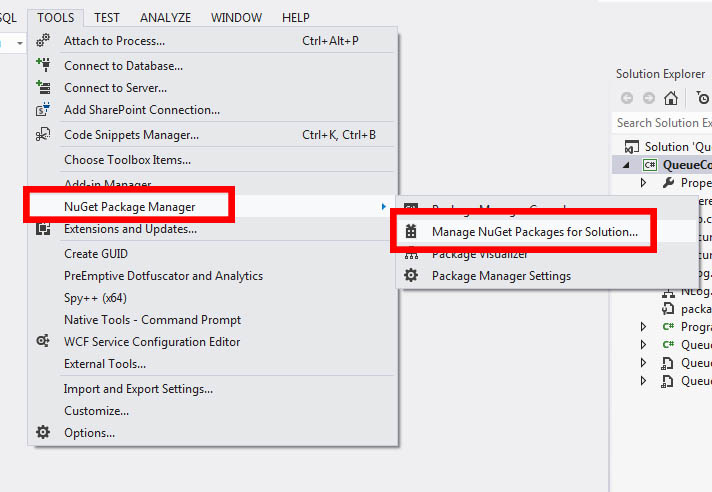
To start off. Go to Tools > NuGet PackageManager -> Manage NuGet Packages for Solution
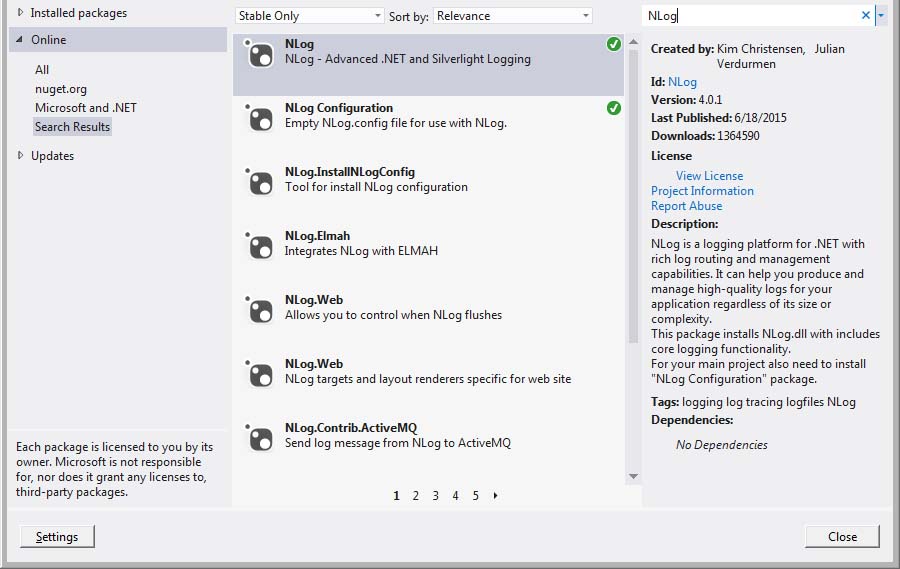
Now, on the upper right of the popup window, there should be a Search field there. Type NLog and search for it.
You should then be able to see a list of some NLog related packages. Select NLog and NLog Configuration.
Once installed, there should be a file named NLog.config. Open that to modify your preferred logging output to either File by default or through console.
By default, the target and rules tags are commented out. Simply uncomment them. If you wish to have NLog output to console, change xsi:type from File to console.