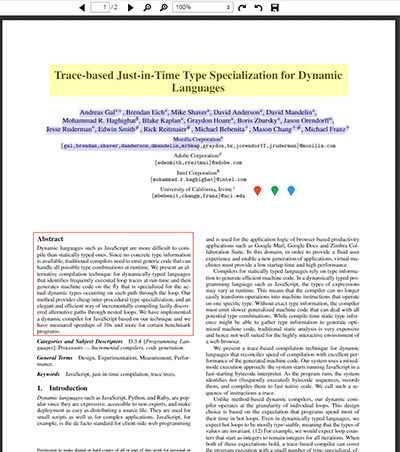
So you successfully added an annotation feature in your PDF.JS web application. You created some shapes onto the Canvas and you want to get the text that are within the bounds of the annotation shape.
How can you do it?
Take this image for example. See the yellow highlighted shape?
The only solution to do this is to add a Span tag for each character because doing this you will be able to get the offset x,y coordinates as well as the width and height and use these details to see if it intersects within the annotation shape’s bound.
By passing the annotation into the parameter, it will get its x, y, width and height details and loops through all the text Div layer of PDF.JS in the page number where the annotation is placed.
Then, if the text Div layer’s bound intersects that of the annotation shape’s bound, it will loop through all the text and add a Span tag.
Each span tag will have its own x, y, width and height and it will be used to see if it intersects with the annotation shape’s bound. If so, the character will be added to the buffer variable.
The buffer variable is the one that stores all the characters found to be within the bounds of the annotation shape.
The annotation parameter should be some annotation class that has a pageIndex and x, y, width and height attributes.
PDF.JS is a wonderful script. It handles most, if not all the PDF loading and viewing functionalities leaving you to just integrate it and voila! Loaded PDF.
Now, a common feature that some users may want is the capability to create annotations. The thing is, with PDF.JS you cannot. The only way for this is to make your own.
I am not going to post my code here for doing that but this post will guide you on what resources you need in order to accomplish this and where in certain parts of the PDF.JS code you need to modify and/or add code to suit your requirements.
Here is a screenshot of the one I made with some shape annotations and icon annotations.
1) ADD ANOTHER CANVAS ON TOP OF THE PDF.JS PAGE CANVAS TO DRAW ANNOTATIONS.
It is worth noting that every page in the PDF.JS PDF document has its own canvas element where drawing takes place if the PDF page contains images. You cannot do your annotation drawing here as that would mean erasing the PDF content. To avoid the hassle of going deep within PDF.JS code, the quickest alternative would be to create another canvas and place it on top.
The div and canvas hierarchy goes like this: pageContainer[page#] > .canvasWrapper > [canvas_element].
In order to get the same attributes when the pages are rotated or scaled, use JQuery’s clone() method to clone the canvas element within .canvasWrapper and then append clones to every page that starts with pageContainer[page#] > .canvasWrapper.
As for annotations, a good place to start is to search in Google on articles guiding users how to create shapes in an HTML5 Canvas element. There are many pre-made script samples that already lets you create, move and resize shapes.
There is one thing worth mentioning that once you add this canvas to the page, you will also have to set the z-index attribute so that it will not be placed behind the PDF pages.
I used a z-index value 1000.
2) ADD A CUSTOM FUNCTION IN VIEWER.JS UNDER EVENT PAGERENDERED
Look for the keyword pagerendered and call your custom function within the document.addEventListener(‘pagerendered’) block.
This is crucial because whenever a page gets rendered because of scaling, rotation or on first loading the PDF, the pagerendered event will always get triggered.
Within your custom function, you can then do the cloning of the canvas for your annotation and load existing annotations and drawing them to the canvas.
3) CREATE A CUSTOM CLASS TO STORE ANNOTATION DETAILS AND A CLASS THAT CONTAINS A CANVAS OBJECT THAT LISTENS TO MOUSE EVENTS.
For example, let us call the custom class CanvasHolder. This will reference the canvas object that you cloned from every page’s canvasWrapper. It is best to create a new CanvasHolder object for every PDF page.
The canvas object must listen to mouse events like onmouseup, onmousemove and onmousedown as this is where all your annotation features will take place.
4) STORE AN ORIGINAL BOUND FOR EVERY ANNOTATION AND A DIFFERENT BOUND FOR DISPLAY PURPOSES
I am no Math wizard so in my case, I decided to store 2 rectangle bounds for every annotation. One is the original that is the equivalent of scale value 1.0. The other is for display purposes so whatever scale value is chosen by the user, the display rectangle bound will use the original rectangle bound’s values and multiply it with the current scale value of PDF.JS.
If you create a new annotation and the scale value is not 1.0, you also have to recompute such that the annotation data saved must be the original rectangle bound’s value.
5) HOW TO SELECT TEXT
Since another canvas layer is placed on top for annotation drawing, chances are you might want to select some text but when you click on it, there is no way to do so because the annotation canvas layer is blocking the PDF page.
The trick here is to use a CSS attribute called pointer-event. In Javascript, you can call it like this:
JavaScript
1
canvas.style.pointerEvents='auto|none';
The values can be auto or none. When setting it to none, the canvas layer is still visible but any mouse events will not be captured by the canvas object. Instead, it will pass through and PDF page will then capture those events.
Pretty slick, right?
6) HOW TO SCALE ANNOTATIONS
Scaling occurs when the zoom in and zoom out buttons are clicked or if a PDF is first loaded. Within the custom function that you make that gets called in the pagerendered event, the best way to add existing annotations of the PDF is to add the annotations according to the last scale value chosen by the user then have some sort of rotate function and rotate it based on the rotation value (90, 180, 240, 360|0 degrees).
For scaling annotations based on the current scale value, you only have to multiply the annotation’s width and height against the current scale value using
JavaScript
1
PDFViewerApplication.pdfViewer.currentScale
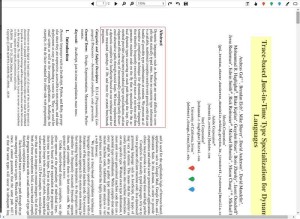
Here is a screenshot of the PDF page when rotated and scaled at 130%.
7) HOW TO ROTATE ANNOTATIONS
As mentioned before, the original rectangle bound values is very useful as this can be your starting point to use the values and do some math rotating them in 90, 180, 240 and 360 degrees.
You only need to provide 2 functions for rotating right and left. Regardless if the rotation was done clockwise or counter clockwise, when you compute for the degree value, use the function Math.abs() in Javascript as it will convert any negative value to positive.
That should lessen your code in computing for the new coordinates during rotation as you only have to about 3 degrees namely, 90, 180 and 240. Remember, 360 is considered 0 (the normal orientation).
You also need to take into account the current scale value of the PDF in order for annotations to be placed correctly in the x,y space when rotated.
I think that these are the main points that need to be tackled in order for you to be able to create clean code on how to create annotations in PDF.JS.
While it may be not be easy to visualize understand since there is not even one block of code here, once you inspect the DOM tree and observe the changes when you scale, rotate and view the PDF, you will be able to understand how it works behind the scenes.
The rest should be easy …
Here is a video of what I did in action.
Here is a video of more annotations as well as a right sidebar list syncing the actions of annotations done in the canvas with the list.