Share the post "Visual Studio 2005: Create A Web Service And Client"
This post assumes you have basic knowledge about web services but have no idea how to make one using the .NET framework. To create a web service in .NET in Visual Studio 2005,
Go to File > New > Web Service , choose ASP.NET Website and name the Project WebService1 (although you can name this any way you want).
Visual Studio 2005 will automatically create the necessary files for you. Note that since it created a .NET web service file called Service.asmx, a code behind file is also created called Service.cs (assuming your language is C#) under the App_Code folder.
Notice in Service.cs, a function that returns a string called HelloWorld is pre-made for you. Now, just compile your project and the IE browser will pop up loading the list of web services found. You can then see your HelloWorld web service there.
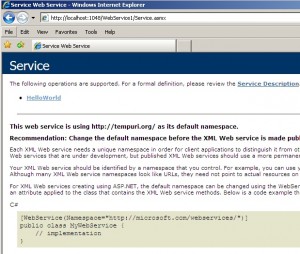
Click on the HelloWorld web service link and click the INVOKE button to check if the web service is running perfectly. Once you click on the INVOKE button, you will see an XML response similar to the one below
|
1 2 |
<!--?xml version="1.0" encoding="utf-8" ?--> Hello World |
That’s it. You can see that your web service is running perfectly. What is a web service without having something to use them right? We shall now create a client to access and use the web service. This is pretty important so be careful how you add a new application to your existing project. To create an application within the same project,
Go to File > Add > New Project , choose Windows Application and name it WSClient. Once added, you will see that your Application and Web Service souce files are now in the same project.
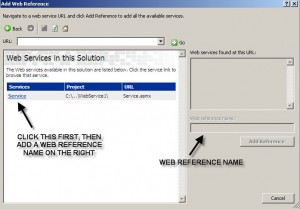
To make use of the HelloWorld web service, right click WSClient in the Solution Explorer and choose Add Web Reference.
Select Web Services in this solution and it will look for available web services.
Choose the Services labeled Service and type in localhost as the web reference name (the web reference name is entirely up to you).
Now we head on to the Program.cs file so we can add code within the Main() method to access the web service. Add the following code.
|
1 2 3 |
localhost.Service ws = new localhost.Service(); Console.WriteLine("->" + ws.HelloWorld()); Console.ReadLine(); |
Right click WSClient in the Solution Explorer again and select Set as Startup Project. This ensures that your application will be run and accesses the web service. If you know debugging, place a breakpoint on Console.ReadlLine(). Click Debug from the menu and choose Start Debug. Now, see the Hello World string outputted to the console.