How To Take A Screenshot in Galaxy S3
Posted by blogmeister on
September 2, 2012
Taking a screenshot in Samsung Galaxy S3 is the same as in S2.
- Press and hold the power and the home button at the same time and wait. Do not release before a confirmation pops up.
However, if you cannot get the timing right, there is another way to do it.
- Place the palm of your hand so it covers the screen from top to bottom then slide from right to left.
Easy, right?
Donations appreciated. Every little $ helps. Or click Google +1.tags: galaxy, palm, s3, screenshot, slide
No Comments
How To Take ScreenShot In Galaxy Nexus
Posted by blogmeister on
May 26, 2012
Considering that the Galaxy Nexus has Ice Cream Sandich as its operating system, this may well be the same with other Android phones running the same OS.
To take a screenshot in Galaxy Nexus, press both power button + volume down. Snap!
You should then see an animation showing you the screenshot.
Donations appreciated. Every little $ helps. Or click Google +1.tags: galaxy nexus, ice cream sandwich, nexus, os, power, screenshot, volume
No Comments
How To Take A Screenshot in Galaxy S2
Posted by blogmeister on
August 3, 2011
Taking a screenshot using the Samsung Galaxy S2 works the same way as you do with an iPhone.
Press the home button and the power button together and you should hear a sound of a screenshot being taken. The screen will flash and you should see a text that shows it has been captured and saved.
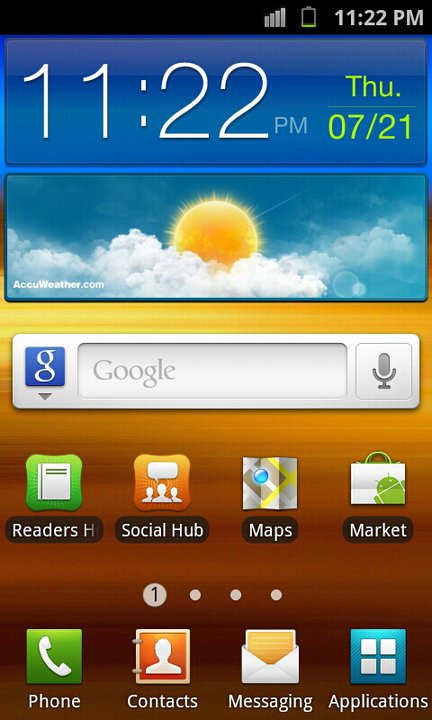
The image above is a sample screenshot taken from my Samsung Galaxy S2 smart phone.
Note: I had been reading through comments and it is true that different o.s. versions and roms like CyanogenMod have different ways to get a screenshot than when I first had my Galaxy S2.
Someone may have already pointed this out but just in case, you may want to try pressing them sequentially but without any delays:
Press volume down button then press power button. This is what I do with my Cyanogen Mod custom ROM on Jeally Bean 4.2.
Donations appreciated. Every little $ helps. Or click Google +1.