According to a market research report shared by industry research firm IBISWorld, the virtual data room vendor industry has grown at an annualized rate of 16.7 percent from 2009 to 2014. The virtual data room (VDR) online repository works as a perfect substitute for physical data rooms by managing the storage and disclosure of documents related to M&A transactions or even venture capital transactions. These online data rooms offer better efficiency, security, and save costs.

The majority of data stored and distributed through VDRs is confidential, and hence maintaining their security with restricted access is of the utmost importance. For the protection of such sensitive information and limited disclosure without any leakage, foolproof PDF security software is required.

Let’s look at how this software can help maintain security for the smooth functioning of virtual data rooms.

Limited User Access

Unlike physical data rooms, where only one bidder team can access the confidential information related to the company undergoing the M&A process, it is possible for multiple users to access virtual data rooms at once. This facility is enhanced by a PDF security tool through secured login credentials for every user. The tool can enable the VDR vendor to offer access only to the interested bidders and their advisers as well as remove user access once the application is withdrawn. An unauthorized user will never be able to login to the VDR, and thus can never access its confidential data.

VDR Access for Multiple Devices

A comprehensive PDF security solution for the VDR will empower users to access it using their login credentials across multiple devices. The security tool will lock user access for select devices to offer better flexibility to the bidders. Specific time limits can be placed to monitor viewing time of the confidential documents across devices. It is possible to set expiration dates to restrict document access based on the number of pages viewed, number of days from initial login, and other factors.

Copy Prevention and Protection

The bidders who have authorized access to the VDR may try to forward the information documents to others through unauthorized access attempts or even by printing documents. Effective PDF security software for digital rights management can be used to prohibit any document printing, or specific restrictions can be placed on the number of document pages that can be printed.

The PDF security tool can help avoid any other attempts to copy information such as offline downloading, image capture through print screen or screen grab tools, and so forth. If a document leaks through, the security software inserts a watermark revealing the user name, company name, email ID, and so forth. This would discourage any authorized users from sharing the private information, as they would not want their names tracked through the watermarks.

Virtual data rooms with a relevant PDF security solution can ensure secured enterprise file sharing and smooth collaboration for M&A transactions. If you aspire to be a reliable virtual data room vendor, opt for the right PDF security software.
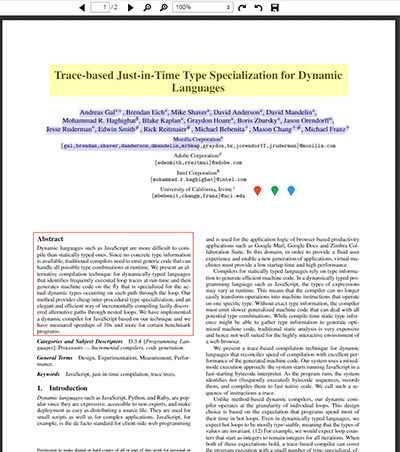
Getting a screenshot in PDF.JS is pretty simple since the functionality is already provided. You just have to know what is needed.

Remember, copying an image to clipboard varies in some browsers and some of them do not even allow it so the only thing you can do is either save it as an image, open it in a different window or use the image data URI as the source of the IMG HTML tag.

To get the screenshot of a PDF page in PDF.JS, you only need to do the following:

  1. Use the getPage() function.
  2. Within its code block, get the viewport according to the scale value of your choosing (or use the current scale value).
  3. Render the page’s Canvas context.
  4. Crop the Canvas based on your x,y coordinate and width and height.

Here is a sample code on how to get the PDF page’s Canvas.

PDF.JS is a wonderful script. It handles most, if not all the PDF loading and viewing functionalities leaving you to just integrate it and voila! Loaded PDF.

Now, a common feature that some users may want is the capability to create annotations. The thing is, with PDF.JS you cannot. The only way for this is to make your own.

I am not going to post my code here for doing that but this post will guide you on what resources you need in order to accomplish this and where in certain parts of the PDF.JS code you need to modify and/or add code to suit your requirements.

Here is a screenshot of the one I made with some shape annotations and icon annotations.

pdfjs_annotation1

1) ADD ANOTHER CANVAS ON TOP OF THE PDF.JS PAGE CANVAS TO DRAW ANNOTATIONS.

It is worth noting that every page in the PDF.JS PDF document has its own canvas element where drawing takes place if the PDF page contains images. You cannot do your annotation drawing here as that would mean erasing the PDF content. To avoid the hassle of going deep within PDF.JS code, the quickest alternative would be to create another canvas and place it on top.

The div and canvas hierarchy goes like this: pageContainer[page#] > .canvasWrapper > [canvas_element].

In order to get the same attributes when the pages are rotated or scaled, use JQuery’s clone() method to clone the canvas element within .canvasWrapper and then append clones to every page that starts with pageContainer[page#] > .canvasWrapper.

As for annotations, a good place to start is to search in Google on articles guiding users how to create shapes in an HTML5 Canvas element. There are many pre-made script samples that already lets you create, move and resize shapes.

There is one thing worth mentioning that once you add this canvas to the page, you will also have to set the z-index attribute so that it will not be placed behind the PDF pages.

I used a z-index value 1000.

2) ADD A CUSTOM FUNCTION IN VIEWER.JS UNDER EVENT PAGERENDERED

Look for the keyword pagerendered and call your custom function within the document.addEventListener(‘pagerendered’) block.

This is crucial because whenever a page gets rendered because of scaling, rotation or on first loading the PDF, the pagerendered event will always get triggered.

Within your custom function, you can then do the cloning of the canvas for your annotation and load existing annotations and drawing them to the canvas.

3) CREATE A CUSTOM CLASS TO STORE ANNOTATION DETAILS AND A CLASS THAT CONTAINS A CANVAS OBJECT THAT LISTENS TO MOUSE EVENTS.

For example, let us call the custom class CanvasHolder. This will reference the canvas object that you cloned from every page’s canvasWrapper. It is best to create a new CanvasHolder object for every PDF page.

The canvas object must listen to mouse events like onmouseup, onmousemove and onmousedown as this is where all your annotation features will take place.

4) STORE AN ORIGINAL BOUND FOR EVERY ANNOTATION AND A DIFFERENT BOUND FOR DISPLAY PURPOSES

I am no Math wizard so in my case, I decided to store 2 rectangle bounds for every annotation. One is the original that is the equivalent of scale value 1.0. The other is for display purposes so whatever scale value is chosen by the user, the display rectangle bound will use the original rectangle bound’s values and multiply it with the current scale value of PDF.JS.

If you create a new annotation and the scale value is not 1.0, you also have to recompute such that the annotation data saved must be the original rectangle bound’s value.

5) HOW TO SELECT TEXT

Since another canvas layer is placed on top for annotation drawing, chances are you might want to select some text but when you click on it, there is no way to do so because the annotation canvas layer is blocking the PDF page.

The trick here is to use a CSS attribute called pointer-event. In Javascript, you can call it like this:

The values can be auto or none. When setting it to none, the canvas layer is still visible but any mouse events will not be captured by the canvas object. Instead, it will pass through and PDF page will then capture those events.

Pretty slick, right?

6) HOW TO SCALE ANNOTATIONS

Scaling occurs when the zoom in and zoom out buttons are clicked or if a PDF is first loaded. Within the custom function that you make that gets called in the pagerendered event, the best way to add existing annotations of the PDF is to add the annotations according to the last scale value chosen by the user then have some sort of rotate function and rotate it based on the rotation value (90, 180, 240, 360|0 degrees).

For scaling annotations based on the current scale value, you only have to multiply the annotation’s width and height against the current scale value using

Here is a screenshot of the PDF page when rotated and scaled at 130%.

pdfjs_annotation2

7) HOW TO ROTATE ANNOTATIONS

As mentioned before, the original rectangle bound values is very useful as this can be your starting point to use the values and do some math rotating them in 90, 180, 240 and 360 degrees.

You only need to provide 2 functions for rotating right and left. Regardless if the rotation was done clockwise or counter clockwise, when you compute for the degree value, use the function Math.abs() in Javascript as it will convert any negative value to positive.

That should lessen your code in computing for the new coordinates during rotation as you only have to about 3 degrees namely, 90, 180 and 240. Remember, 360 is considered 0 (the normal orientation).

You also need to take into account the current scale value of the PDF in order for annotations to be placed correctly in the x,y space when rotated.

I think that these are the main points that need to be tackled in order for you to be able to create clean code on how to create annotations in PDF.JS.

While it may be not be easy to visualize understand since there is not even one block of code here, once you inspect the DOM tree and observe the changes when you scale, rotate and view the PDF, you will be able to understand how it works behind the scenes.

The rest should be easy …

Here is a video of what I did in action.

Here is a video of more annotations as well as a right sidebar list syncing the actions of annotations done in the canvas with the list.

Related Posts Plugin for WordPress, Blogger...