The Javascript Keyword var
Posted by tech on
December 9, 2008
Why am I blogging this? For such a simple keyword. I made this post to remind me that after so many years of using Javascript, I now know what the purpose of the keyword var really is for. The purpose for using the var keyword on a variable is to make it locally scoped. This means that if you use that inside a function, the variable’s scope is gone once the function is finished processing. I never noticed any difference with using a var or not simply because there never came a point in time that I would be having problems with the values of a variable. Until now. When I had problems with the values on a single variable, I was confused why. I tried to add the var keyword thinking, who knows right? And it worked! That was the time I decided to look up the purpose of the var keyword in Google and found the answer.
I laugh at myself why I discovered this until now after so many years. But hey, better late than never right? At least now I know he he he  .
.

tags: javascript, var
1 Comment
Create Accordion Menu Using JQuery
Posted by tech on
November 25, 2008
When I had the job interview last weekend, I was asked if I had experience with Accordion 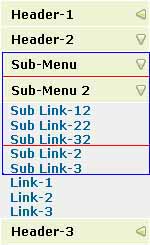 Menus. Accordio-what??? I thought it was some kind of Javascript framework for easily creating menus. I was only able to know what it was about until it was workday again and I got to surf for it so I could check what it was exactly. So, an accordion menu is actually a type of a menu that expands content (can be sub menu items or text or image or whatever).
The sample menu that was given to me to modify came from this site. The accordion menu in that URL was created using JQuery and is limited to one level only. There are no sub-menus. I think I did badly in that exam since I have never used JQuery extensively unless they were show() hide() funtionalities. I decided to check JQuery out and try to make it work. What I did was use the same CSS class attributes and changed the code to cater sub-menus no matter how many level(s) a menu item has. The finished code would create an accordian menu that looks like the image on the right. I highlighted the sub-menus as blue and red. I am not much of a CSS stylist so it is up to you to change the existing CSS code to, let’s say, have the text move a bit to the right so that they all won’t be aligned vertically.
Here is the JQuery code
1 2 3 4 5 6 7 8 9 10 11 12 13 14 15 16 17 18 19 20 21 22 23 24 25 26 27 28 29 30 31 32 33 34 35 36 37 38 39 40 41 | $(document).ready(function() { var clicked_menu_head; var speed = 300; $('.menu_head').click(function() { clicked_menu_head = $(this); if (clicked_menu_head.next().is(':visible')) { clicked_menu_head.next().slideUp(); clicked_menu_head.css({backgroundImage:"url(left.png)"}); } // if clicked menu head is submenu, check if there are any submenus in it, then hide clicked_menu_head.next().find('p.menu_head').each(function () { $(this).next().slideUp(speed); $(this).css({backgroundImage:"url(left.png)"}); }); parent_menu_head = clicked_menu_head.parents('div.menu_body').prev(clicked_menu_head.parents('div.menu_body').size()-1); if (clicked_menu_head.next('div.menu_body').is(':visible')) { } else clicked_menu_head.css({backgroundImage:"url(down.png)"}).next('div.menu_body').slideDown(speed); $('#firstpane').children('p').siblings('p').each(function() { // loop through each main menu, if not equal, hide all sub menu if (parent_menu_head.attr('id')) { if (parent_menu_head.attr('id') != $(this).attr('id')) { $(this).children('div.menu_body').slideUp(speed); } } else { if (clicked_menu_head.attr('id') != $(this).attr('id')) { $(this).css({backgroundImage:"url(left.png)"}) $(this).next().slideUp(speed).find('p.menu_head').each(function() { $(this).next().slideUp(speed); }); } } }); }); }); |
And this is the HTML code. I provided 1 menu item sample that has 2 sub-menu levels.
1 2 3 4 5 6 7 8 9 10 11 12 13 14 15 16 17 18 19 20 21 22 23 24 25 26 27 28 29 30 31 32 33 34 35 36 37 38 39 40 41 42 43 44 45 46 47 48 49 50 | <body> <div style="float:left" > <!--This is the first division of left--> <p><strong> Works on clicking </strong></p> <div id="firstpane" class="menu_list"> <!--Code for menu starts here--> <p id="header1" class="menu_head">Header-1</p> <div class="menu_body"> <a href="#">Link-1</a> <a href="#">Link-2</a> <a href="#">Link-3</a> </div> <p id="header2" class="menu_head">Header-2</p> <div class="menu_body"> <div class="menu_list"> <p id="submenu" class="menu_head">Sub-Menu</p> <div class="menu_body"> <div class="menu_list"> <p id="submenu2" class="menu_head">Sub-Menu 2</p> <div class="menu_body"> <a href="#">Sub Link-12</a> <a href="#">Sub Link-22</a> <a href="#">Sub Link-32</a> </div> </div> <a href="#">Sub Link-2</a> <a href="#">Sub Link-3</a> </div> </div> <a href="#">Link-1</a> <a href="#">Link-2</a> <a href="#">Link-3</a> </div> <p id="header3" class="menu_head">Header-3</p> <div class="menu_body"> <a href="#">Link-1</a> <a href="#">Link-2</a> <a href="#">Link-3</a> </div> </div> <!--Code for menu ends here--> </div> </body> |
Notice that in <p> and div tags (with ID firstpane), I added the attribute ID to give them unique identifier names. This is mandatory in my code because I used the tag’s ID to check if the menu header clicked is a parent menu header or a sub menu header.
Make sure that you have a main container, in this case, firstpane with CSS class menu_list. Next in the CSS sequence are the menu_head and the menu_body (contains your menu items or more sub-menus).
Found this post useful? Donations appreciated. Every little $ helps.tags: accordion menu, javascript, jquery
30 Comments
Calling An Anchor Name Using Javascript
Posted by tech on
November 19, 2008
I pretty much was at a deadend when I searched in the net how to call an anchor that looks like this
using Javascript.
Normally, common HTML pages provide an anchor link, that when clicked, will hover the browser position to where that anchor name is placed in the HTML page. But what if you want to use Javascript to do that. You use this code to do that
1 | location.hash = 'here'; |