When you add an Ext.Panel and you did not set it to fullscreen while setting centered to true, the result may look like on the left photo.

Notice the black borders of the Ext.Panel touching the side? While this may not look the same in a tablet considering its size, it will look like this in a phone.
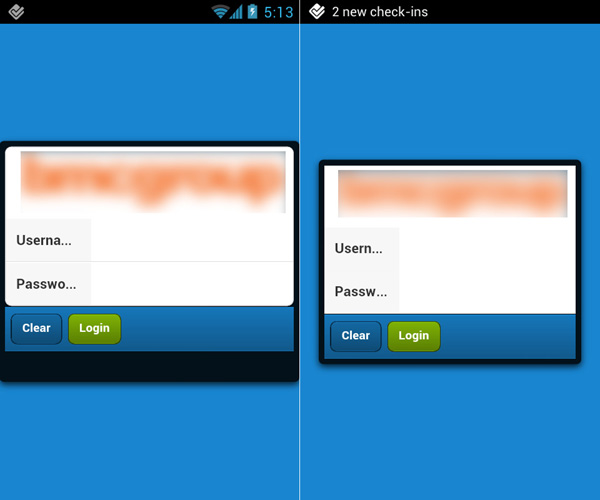
To add margins that look like in the right photo, add the margin attribute in the config options and supply values for top, left, bottom and right just like in CSS.

When using an Ext.Image and putting it inside an Ext.Panel, you have to specify a width and height in order for it to appear. If you do not, then it becomes blank.

There is a workaround for this. Instead of using an Ext.Image or xtype image, put the image inside another Ext.Panel and use the IMG HTML source tag in it with a special CSS style attribute included.

While this may not work in Internet Explorer browser and possibly so with Windows Phone, if your target is only Android and/or iOS, then this should be no problem at all. It should work.

And the answer to that is … you cannot. However, a hack could be to add another variable to your Ext.data.Model class and use that as the displayField value instead.

Take this model class for example:

If you want to have both firstname and lastname to appear as the displayField in the Ext.field.Select component, then we can add another variable called fullname and use that instead.

Related Posts Plugin for WordPress, Blogger...