Share the post "Bootstrap 2.3 Modal Appears Behind Background"
I came across a problem using Bootstrap 2.3.1 and creating a modal popup window. The result looked somewhat like this (photo taken from a thread in StackOverflow).
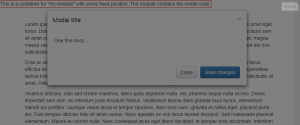
Now, in the StackOverflow forum, I read posts that showed a solution by appending it to the body instead of having to place the DIV layer outside any nested elements, like perhaps just before the tag.
This is how they said to do it:
|
1 |
$('#div').appendTo('body').modal('show'); |
This may look correct but there is actually a problem with this one. In my Angular JS web application, whenever I call this code, it shows the modal with the correct data. However, succeeding calls to it will show the modal that were created previously.
This is because of the appendTo(‘body’) call. Now, if we remove it when the modal is closed, the modal popup will not appear again.
Bootstrap version 3 seemed to fix this problem. However, since I already created my web template based on Bootstrap 2.3.1, I had to find a way to make sure that the modal popup window will only be appended to the BODY tag once.
The solution to this is to assign the return value of $(‘#div’).appendTo(‘body’) to a variable like this:
|
1 2 3 |
var modal; if (!modal) modal = $('#div').appendTo('body'); modal.modal('show'); |
This way, the DIV layer element that contains the content of the modal popup will only be appended to the BODY element once and calls to modal(‘show’) will not bring up any other modal windows.