Even if you know Object Oriented Programming in certain languages like Java, learning C# is totally different. One of the features that varies greatly in C# from Java is passing values by reference as parameters of methods. In Java, data types are automatically passed by value while classes are passed by reference. Good thing I decided to read out a beginner’s book for C#.

In C#, if you want to pass objects by reference, you would have to use the keyword ref. Take for example the sample code below

If you would call the method change() like this

the output for the object str would be haha instead of hoho. You would have to use the ref keyword for this to work

Data types are a different story. To do the same way to data types as parameters in methods, you would use the out keyword like this

Calling the change method

will output 10 as the value. If you do not use the out keyword, the value of i will still be 1.
This post assumes you have basic knowledge about web services but have no idea how to make one using the .NET framework. To create a web service in .NET in Visual Studio 2005,

Go to File > New > Web Service , choose ASP.NET Website and name the Project WebService1 (although you can name this any way you want).

Visual Studio 2005 will automatically create the necessary files for you. Note that since it created a .NET web service file called Service.asmx, a code behind file is also created called Service.cs (assuming your language is C#) under the App_Code folder.

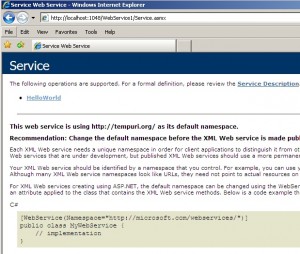
Notice in Service.cs, a function that returns a string called HelloWorld is pre-made for you. Now, just compile your project and the IE browser will pop up loading the list of web services found. You can then see your HelloWorld web service there.

Click on the HelloWorld web service link and click the INVOKE button to check if the web service is running perfectly. Once you click on the INVOKE button, you will see an XML response similar to the one below

That’s it. You can see that your web service is running perfectly. What is a web service without having something to use them right? We shall now create a client to access and use the web service. This is pretty important so be careful how you add a new application to your existing project. To create an application within the same project,

Go to File > Add > New Project , choose Windows Application and name it WSClient. Once added, you will see that your Application and Web Service souce files are now in the same project.

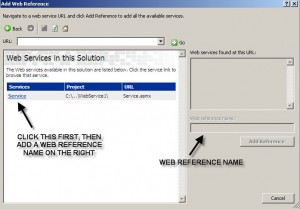
To make use of the HelloWorld web service, right click WSClient in the Solution Explorer and choose Add Web Reference.

Select Web Services in this solution and it will look for available web services.

Choose the Services labeled Service and type in localhost as the web reference name (the web reference name is entirely up to you).

Now we head on to the Program.cs file so we can add code within the Main() method to access the web service. Add the following code.

Right click WSClient in the Solution Explorer again and select Set as Startup Project. This ensures that your application will be run and accesses the web service. If you know debugging, place a breakpoint on Console.ReadlLine(). Click Debug from the menu and choose Start Debug. Now, see the Hello World string outputted to the console.

I recently started fooling around with .NET. I never had the urge to try it out before until now. I thought, since these days I got nothing to do in the meantime at work, I could study a new technology to add to my resume. I have been reading about .NET and using its IDE called Visual Studio. My phase is a bit slow since I’m fairly new to this area. Anyway, on to the topic of this post. Majority of web applications involves having interactions with the database. However, Visual Studio only includes connectors for its MS Sql Server to interact with the database. I think Oracle is also included. Another way to connect to a variety of databases is via ODBC but I don’t like using that. Since I want to use MySQL, I had no way to connect to it unless I find a connector for it specifically. Currently, the .NET framework is at version 2 so a MySQLConnector made specifically for that should be downloaded. You can get it here. If you happen to come across a MySQLConnector link for .NET 1.0, that will not work if your .NET framework is version 2.

This post assumes you know your way around Visual Studio and its coding syntax. If not, please review the basics of ASP.NET. Install the connector. Go to your Visual Studio and right click the project name in the Solution Explorer window. Right click, choose Add Reference and browse where the MySQL connector DLL file is located. To check if creating a connection is successful or not, we need to add some C# code. Make sure you include the namespace MySql.Data.MySqlClient by using the keyword using. Create a Label control and name the ID lblInfo. In the Solution Explorer, under the aspx file where the Label control is located, go to the .cs file that falls under it. This is the C# file that is associated with the .aspx file. You will find a method there named Page_Load(). inside the method, add the following code.

That’s it. Run your web application and see if the connection is successful or not.

Related Posts Plugin for WordPress, Blogger...